OPC UA import and reconciliation
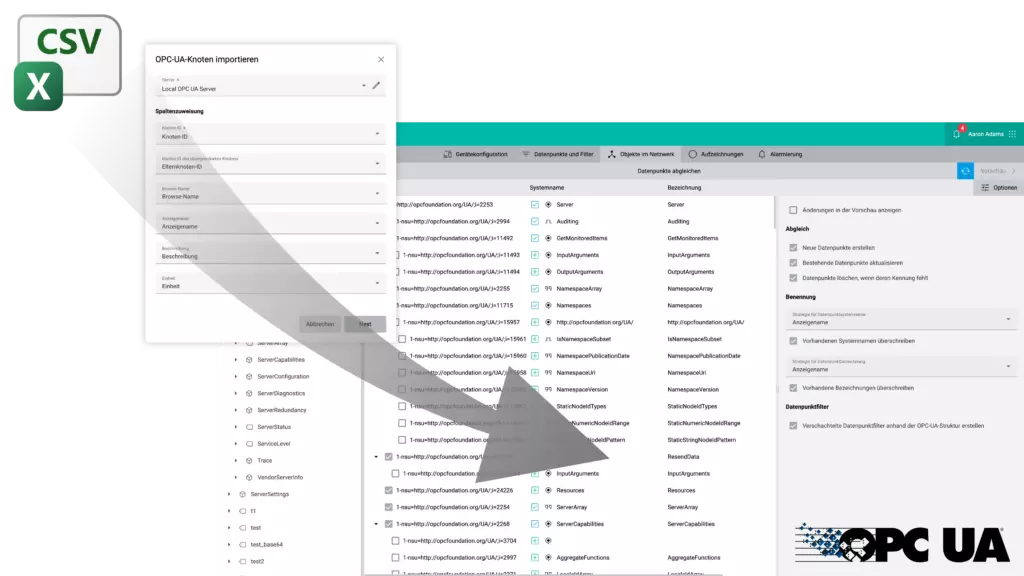
It is now possible to create data points for OPC UA nodes by importing and reconciling them from a CSV file. This feature also allows users to easily set properties on data points that are otherwise difficult to import from OPC UA directly, like the unit or description of data points.
On the Data Point and Filters page, click on More > Import Data Points and choose the option OPC UA Nodes. For more information, see chapter Import data points in the user manual.
Alarm notification by phone
We are expanding our existing alarm notification channels (email, SMS, and push notifications) to include phone alerts. With this alarm method, users are notified via phone call, and the specified alarm text is automatically converted to spoken language. Contact our sales team for more information.

Annotate data point calculations with your own notes
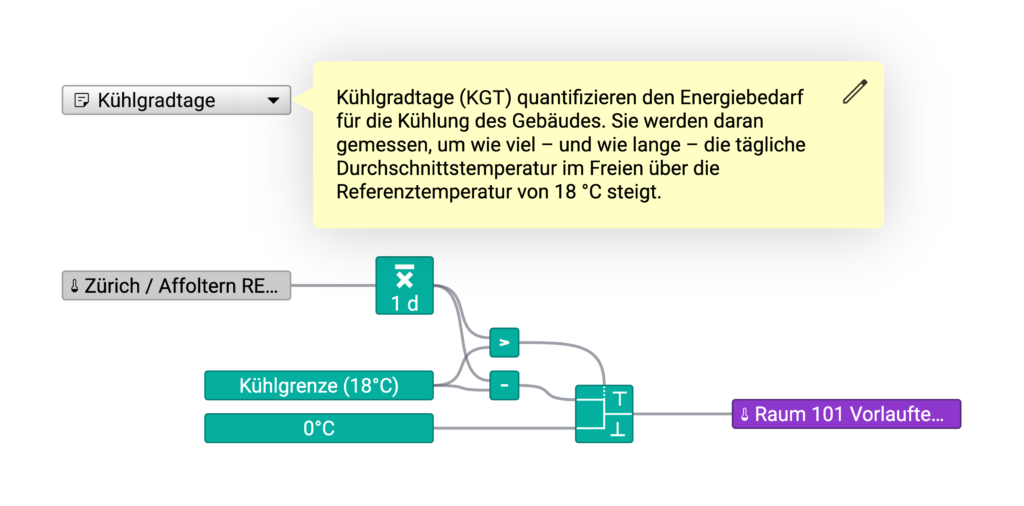
You can now annotate your data point calculations with your own notes by using the Note shape. Place it anywhere on the page and add short comments or detailed descriptions about the calculation.
Hover state on schematic shapes
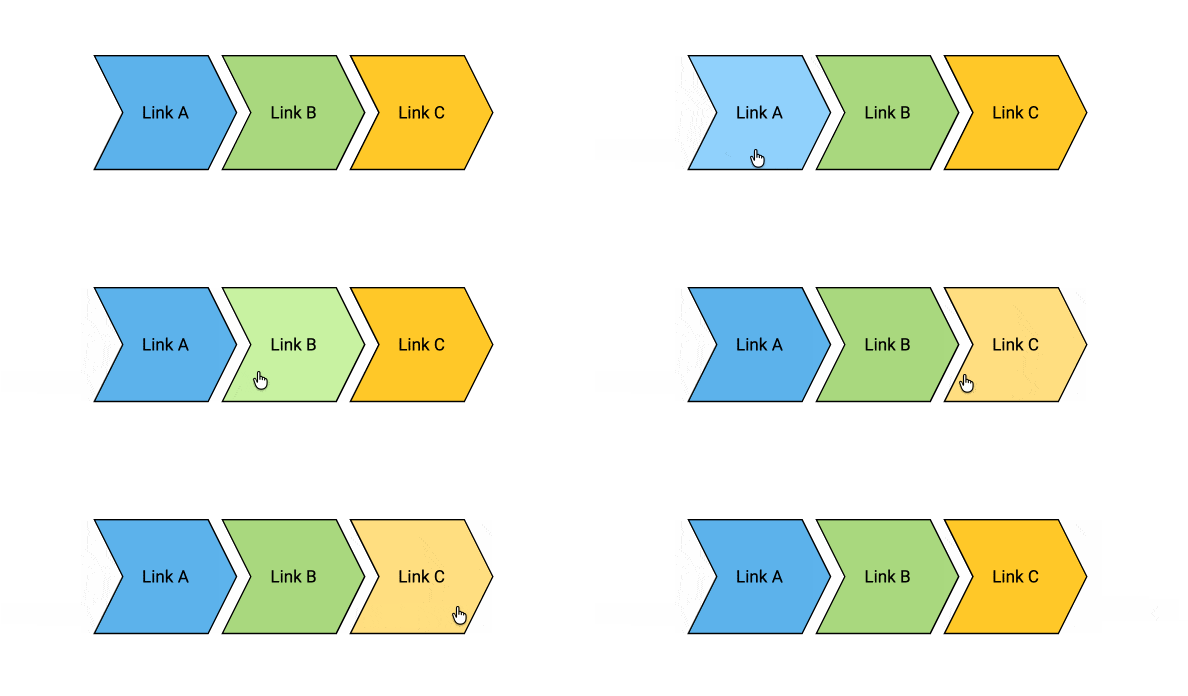
You can now configure a different color and stroke style on geometric shapes like rectangles or ellipses that is applied to the shape when the user hovers over them. This is particularly useful to highlight clickable shapes with links.
Shape equipment identification
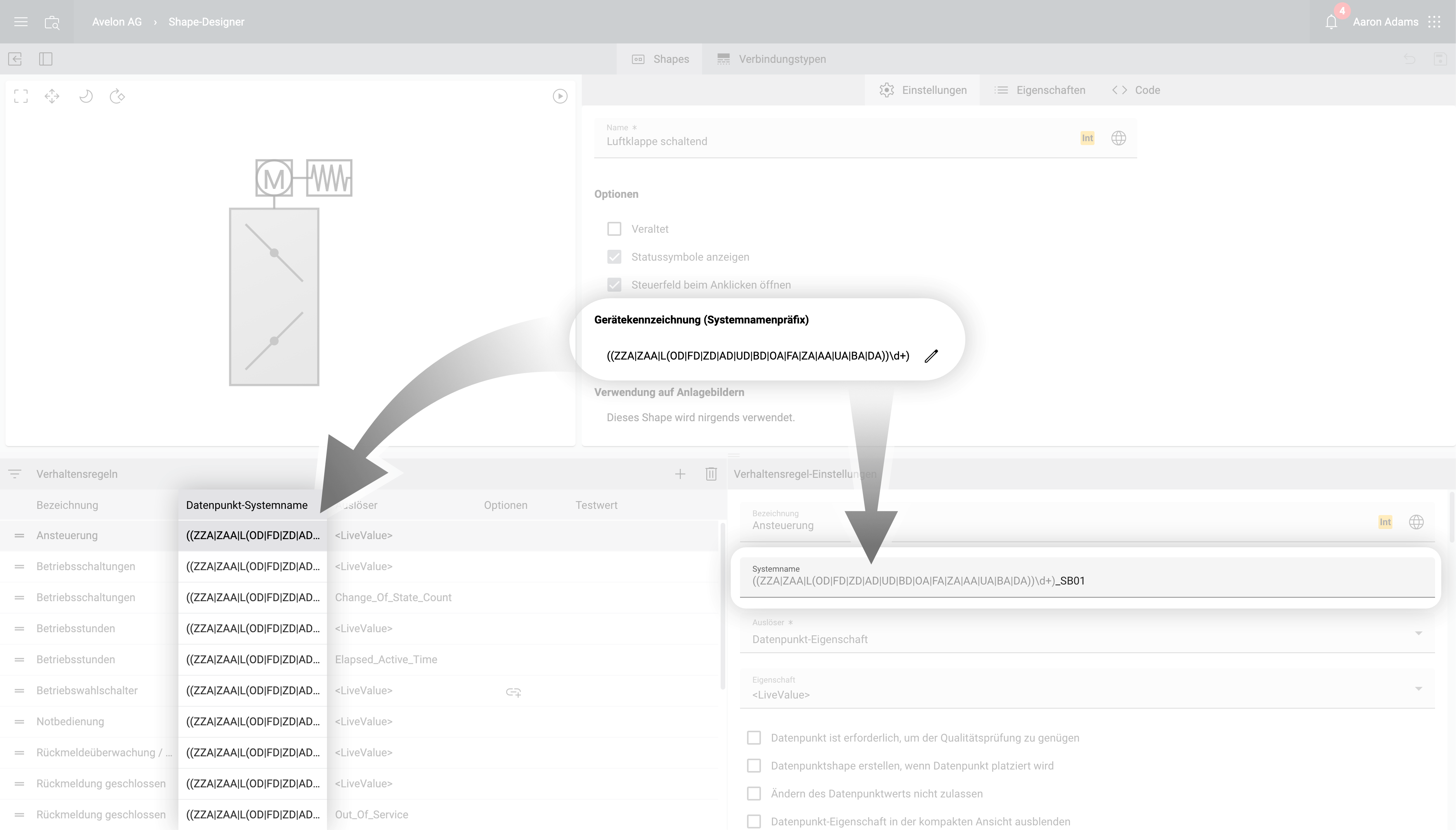
We’ve added a new field to the shape configuration. It can be used optionally to identify the equipment that the shape represents. This string will be prepended to the system name of every single behavior rule on that shape. This has no effect on the actual functionality of the shape, but it speeds up the process when creating or changing behavior rules.
Quick mode toggle and line wrap toggle in shape editor
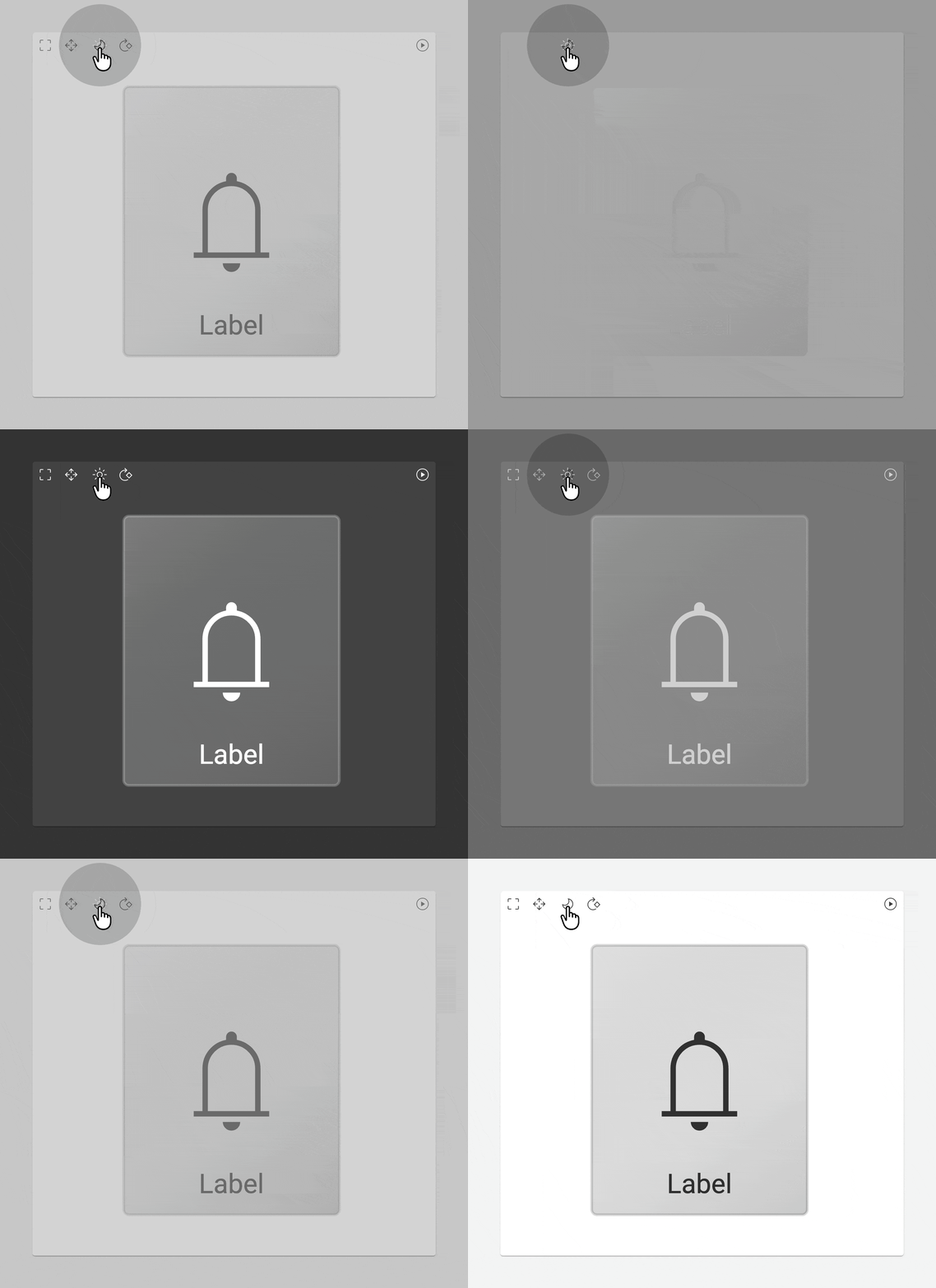
We’ve added a toggle button to the preview on the shape editor and to the toolbox of the schematic editor that allows you to quickly toggle between light and dark mode. This will make it much easier to review your design in both modes and verify that they look good in both modes.
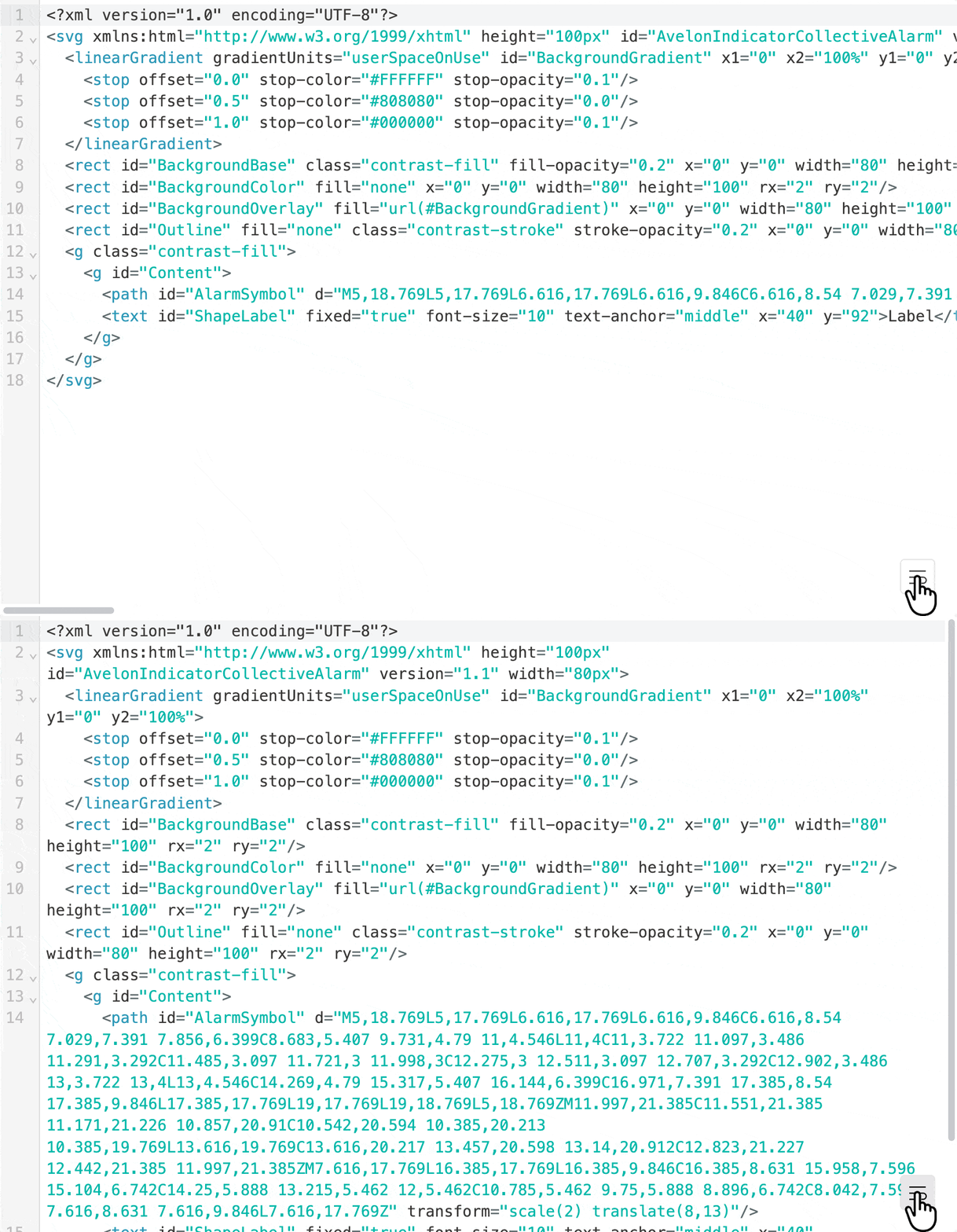
In addition, we’ve added a button to the SVG code editor that toggles automatic line wrap, making it easier to navigate through longer SVG code.
Monitoring of active sessions
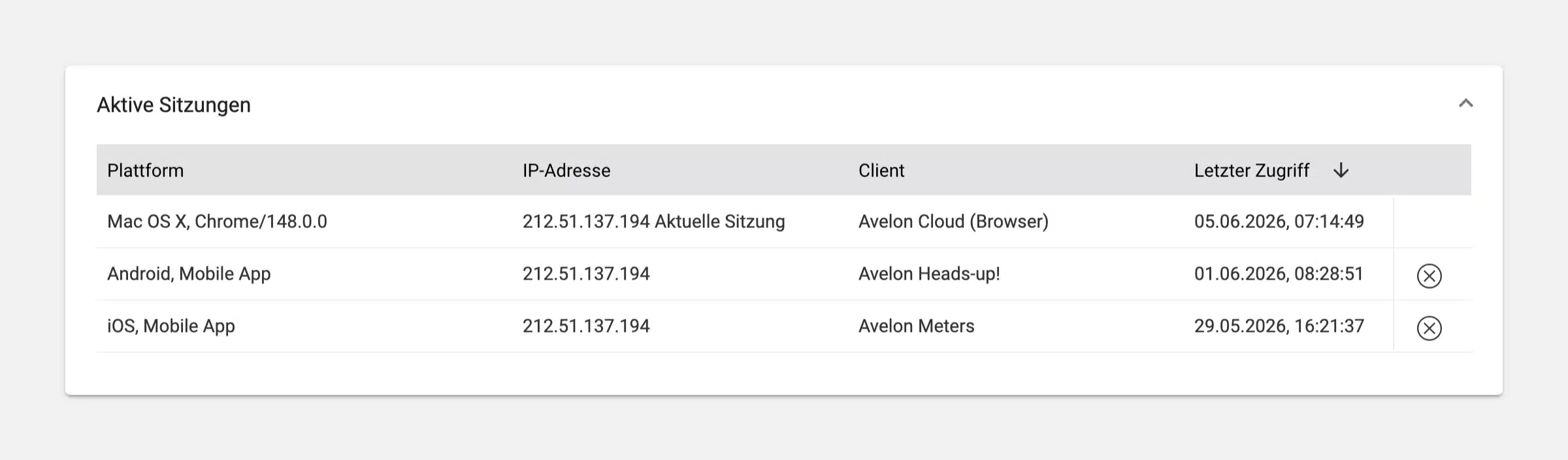
To keep track of active sessions, we’ve added a new Active Sessions card to the user account page, where you can see the currently active sessions of all devices with the same user credentials. You have the possibility to terminate active sessions.
Avelon Meters licensing
Avelon Meters requires a separate licenses for each active session in accordance with our price list. If several users need to use the app simultaneously, or if the same user uses multiple phones to access the app, separate licenses are required for each of these. If you’re running out of licenses, you can terminate old Avelon Meters sessions manually using the active sessions monitoring described in the previous paragraph. This will free up a license and allows another user to log into the app.
Document Management licensing
Free storage for uploaded documents is limited to 100 MB per client in accordance with our price list. If your client account has any paid subscriptions, the free storage space is automatically increased to 1 GB. If you need additional storage for your documents, we offer licenses for 10 GB and 100 GB, respectively. Please contact our sales team for more details.
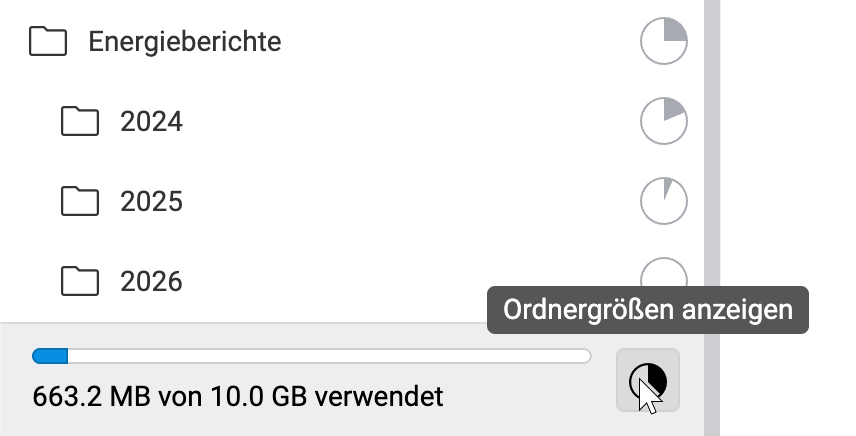
Alternatively, you can free up space by deleting old files. We’ve added an option that allows you to toggle the storage usage of your folders. Just click on the button at the bottom of the folder panel.
Important announcement regarding Avelon Share
The Avelon Share application for Windows will be discontinued in version 7.36. Users should uninstall the application and use the document management on Avelon Cloud to access and manage their documents.
Bug fixes and improvements
- The search in the client selection dropdown also returns matching users and addresses, but it can now be limited to clients only with the new toggle button next to it.
- It’s now possible to create the following additional BACnet object types from Avelon Cloud: Access Credentials, Access Door, Access Point, Access Rights, Access User, Access Zone, Accumulator, Alert Enrollment, Averaging, Bit String Value, Channel, Command, Credentials Data Input, Date Pattern Value, Date Time Pattern Value, Data Time Value, Date Value, Event Log, Global Group, Integer Value, Life Safety Point, Life Safety Zone, Lighting Output, Load Control, Loop, Octet String Value, Positive Integer Value, Program, Structured View, Time Pattern Value, Time Value, Trend Log Multiple.
- Data point tags can now be displayed in a separate column on the Ticket List widget.
- From the device configuration page of a Lumina Operation Center on Avelon Cloud, you can now directly access the user interface of the respective Lumina Operation Center panel as well as the configuration page of the built-in Beetle.
- The name and description of the BACnet device object representing the Beetle can now be configured in the BACnet settings on the Beetle itself.